Linux user manager
The Linux User Manager service allows ESF to manage a Linux user associated with an ESF identity. The associated Linux user has the same name as the ESF identity. When a new ESF identity is created, a Linux user with the same name is automatically created in the system.
It supports the following operations:
- Creating a new associated Linux user
- Deleting an existing associated Linux user
- Managing password and key authentication for the associated Linux user
This component will create the home directory for the associated user as part of the user creation process and it will delete it when the user is removed.
Warning
Removing a user also means terminating all processes run by that user. Please ensure that there are no daemons on the system configured to run on startup as the user that is about to be deleted.
Required permissions
Linux user management is performed by calling the useradd, userdel, passwd and chpasswd commands. The privileges required to perform such operations are acquired using sudo.
ESF installer will create a sudoers configuration file in the /etc/sudoers.d directory that allows the esfd user to run the required commands.
Configuration
The configuration of a Linux user can be customized by using the ESF WebUI or uploading a snapshot file.
Snapshot Configuration
This service will store the Linux user related configuration through the UserAdmin service, using the properties and credential of the UserAdmin User associated with an ESF identity. More information on how ESF identities are stored in the UserAdmin service are available in the ESF documentation.
As explained in ESF documentation, UserAdmin state is persisted in ESF snapshot as part of the configuration of the org.eclipse.kura.internal.useradmin.store.RoleRepositoryStoreImpl component.
Uploading a snapshot with a suitable org.eclipse.kura.internal.useradmin.store.RoleRepositoryStoreImpl configuration can be used to apply changes to Linux user configuration through Everyware Cloud, for example as part of device provisioning and/or using configuration update jobs. An example of snapshot configuration can be found in the Example section.
In order to reduce the number of modifications to the filesystem, the actual update to Linux user configuration will be performed with a delay of a few seconds after UserAdmin state is modified.
WebUI configuration
A user can manage ESF identities and associated Linux users through the web UI, as shown in the picture below.
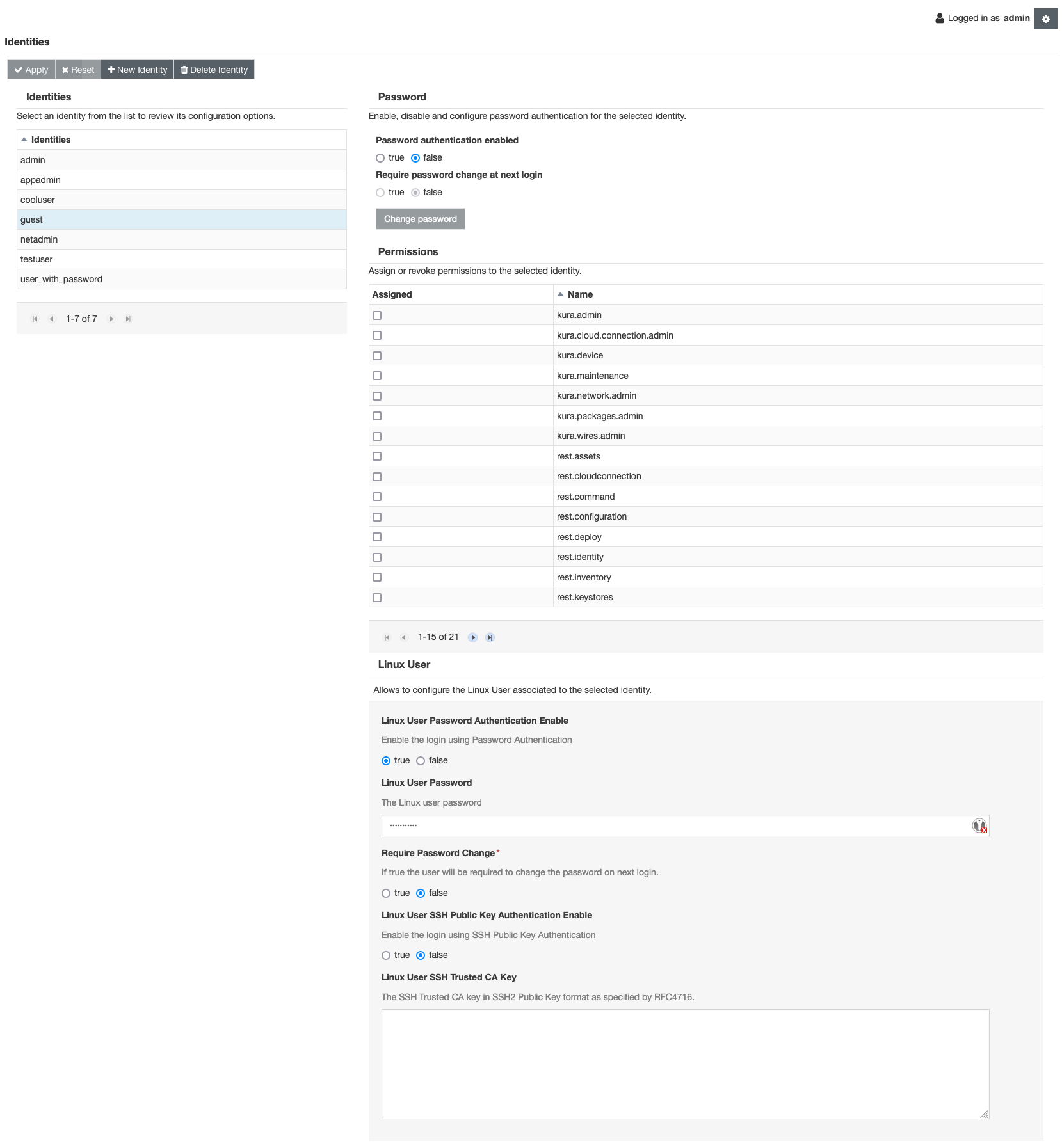
After selecting the Identities tab, the user can create a new identity or configure an exiting one, as explained in the ESF documentation. The Linux user can be configured with the properties at the bottom of the Identity page. The meaning of the properties are presented in the properties section.
Also in this case, the actual update to Linux user configuration will be performed with a delay of a few seconds after the state is submitted, to reduce the number of modifications to the filesystem.
Note
At ESF startup, the bundle scans the system to get information about the Linux users already configured. Only regular users with an associated shell will be selected and shown in the Web UI. root, esfd and other system users will be filtered and they will not be configured using the Web UI or snapshot. For every allowed user, a new ESF identity is created.
Requirements on identity name
The service will only process UserAdmin Users that are associated with an ESF identity (the ones whose name is in the kura.user.${suffix} form, the name of the Linux user will be ${suffix}).
In addition to the restrictions that apply to Kura identity names (see Authentication and Authorization section of ESF documentation), the identity name must be suitable to be used as a Unix user name as well, in particular all of the following conditions must hold:
- The identity name must only contain characters from the following character set:
A B C D E F G H I J K L M N O P Q R S T U V W X Y Z a b c d e f g h i j k l m n o p q r s t u v w x y z . _ -
-
The identity must not start with the
-character. -
The identity name must be at most 32 characters long.
If any of these conditions do not hold, the associated Linux user will not be managed by ESF and the configuration will not be shown in the Web UI.
Note
The first two conditions are always satisfied by identity names that are compliant with Kura requirements, and will be enforced if the identity is created through ESF Web UI or identity v2 rest APIs (identity creation will fail). This does not apply to the third condition or to the case when the configuration is applied trough direct modifications to the snapshot, in this case if the identity name is not compliant the Linux user will not be managed by ESF as reported above.
UserAdmin Properties and Credentials
This section describes the UserAdmin properties and credentials that are processed by the Linux User Manager service. The corresponding properties shown in the ESF Web UI are in the brackets.
Note
All properties and credentials are of string type
Properties
- linux.user.password.auth.enable (Linux User Password Authentication Enable)
Enables or disables the password authentication. A new password can be set by specifying the linux.user.password credential. If the linux.user.password credential is not set, no change will be applied to the password currently configured on the system.
Warn
In order to be able to login using password via SSH, password authentication must also be enabled in global SSH configuration file. Password authentication is disabled globally in SSHService default SSH configuration, in order to be able to login using password via SSH the following setting must be changed:
PasswordAuthentication yes
- linux.user.require.password.change (Require Password Change)
If this property is set to true, the user will be forced to change its password at next login, this is implemented by expiring the current user password. The linux.user.require.password.change property will be deleted after it has been processed.
Please note that setting this property to false will not have any effect if the user password is already expired. This can be undone only by setting a new user password.
- linux.user.ssh.key.auth.enable (Linux User SSH Public Key Authentication Enable)
Enables or disables the SSH public key authentication. The key has to be set by specifying the linux.user.ssh.ca.key property. OpenSSH will allow login using Public Key Authentication. This will change the SSH daemon configuration presented in SSHService, adding the required properties to enable the SSH login with the specific Linux user. These options should not be changed manually since the SSH Service will automatically recover the previous configuration.
Warn
In order to be able to configure Public Key authentication, the SSHService must be enabled. Changes to the linux.user.ssh.key.auth.enable and linux.user.ssh.ca.key parameters will not be applied if SSHService is disabled.
- linux.user.ssh.ca.key (Linux User SSH Trusted CA Key)
When the linux.user.ssh.key.auth.enable option is enabled, this field contains the SSH public key to be installed in the system to enable SSH login. The key has to be in SSH2 Public Key format as specified by RFC4716. E.g:
---- BEGIN SSH2 PUBLIC KEY ----
Comment: "comment"
key in base 64 format
...
...
...
---- END SSH2 PUBLIC KEY ----
Note
If linux.user.password.auth.enable is set to false and linux.user.ssh.key.auth.enable is set to true, the * character will be used as password hash in /etc/shadow, disabling password authentication but still allowing to login using SSH public key authentication. If both linux.user.password.auth.enable and linux.user.ssh.key.auth.enable are set to false, the ! character will be used as password hash in /etc/shadow. In this case the login is disabled and the user is locked.
Credentials
- linux.user.password (Linux User Password)
Specifies the current Linux user password hash, in the form produced by the crypt function.
The password hash can be produced from the plaintext password using the mkpasswd command, provided for example by the whois package on Debian distributions, see the corresponding man page.
The following command line computes the hash of the password provided on stdin using the SHA512 algorithm:
The linux.user.password credential will be deleted after it has been processed.
Warn
It is recommended to experiment on a test device and verify that the password hash is well formed before applying the configuration in production. If the password hash is not well formed, it will not be possible to login as the specified user using password authentication.
Example
The following example shows a configuration snippet that will cause the creation of an user named testuser with a password set and with password change required at next login. The SSH key login is enabled as well.
<?xml version="1.0" encoding="UTF-8"?>
<esf:configurations xmlns:esf="http://eurotech.com/esf/2.0" xmlns:ocd="http://www.osgi.org/xmlns/metatype/v1.2.0">
...
  <esf:configuration pid="org.eclipse.kura.internal.useradmin.store.RoleRepositoryStoreImpl">
    <esf:properties>
        ...
        <esf:property array="false" encrypted="false" name="users.config" type="String">
           <esf:value>
           [
           ...
           {
            "name":"kura.user.testuser",
            "properties":{
                "linux.user.password.auth.enable":"true",
                "linux.user.require.password.change":"true",
                "linux.user.ssh.key.auth.enable":"true",
                "linux.user.ssh.ca.key":"...SSH Trusted CA Key..."
                },
            "credentials":{
                "linux.user.password":"...password hash..."
                }
            }
            ...
            ]
           </esf:value>
        </esf:property>
        ...
    </esf:properties>
  </esf:configuration>
...
</esf:configurations>